AI Converter
Photos of receipts, handwritten notes, and PDFs sit in your camera roll doing nothing. This shortcut uses Apple Intelligence to extract and format the content, then writes it directly into Craft — turning scattered captures into searchable, organized documents.




Built by Jay Shrimplin with Craft and Apple Shortcuts
Build It Yourself
Step 1 – Get Your Craft API Key
Start by enabling the API on a Craft document where you want to receive converted content. Generate your API key and save it somewhere safe – you’ll need it in the next step.
Step 2 – Download the Shortcut
Get the AI Converter shortcut with this link. This is the heart of the workflow – it handles all the heavy lifting of converting different content types into formatted text.

Step 3 – Configure Your API Endpoint
Open the shortcut in the Shortcuts app and add your Craft API details:
- Your Craft document’s API URL
- Your API key (the 11-digit code)
- Optionally, your published website page if you want to use that instead
Save the shortcut to your home screen for quick access.
Step 4 – Choose Your Input Method
The shortcut gives you four options when you run it:
Use File in Clipboard – Copy anything (text, images, PDFs, screenshots) and the shortcut processes it immediately.
Choose Photos for OCR – Open your Photos app, select images, and the shortcut extracts and formats the text.
Choose a File from Folders – Browse your files and select images, PDFs, or text documents to convert.
Text Prompt – Type or paste text directly, or ask the AI a question and it will answer instead of proofreading.
Step 5 – Let Apple Intelligence Work
The shortcut sends your content to Apple Intelligence (or ChatGPT 5.0) which:
- Proofreads and corrects spelling
- Formats everything as Markdown
- Generates a catchy title automatically
- Keeps the original meaning intact
Step 6 – Watch It Appear in Craft
The formatted content is automatically sent to your Craft document via the API. Open Craft and see your beautifully formatted note ready to use.
Real-World Examples
Recipes from photos – Photograph a recipe card or cookbook page, and get a clean, formatted recipe in Craft.
Business cards – Snap a photo of a business card, extract the contact info, and save it formatted in Craft.
Receipts and invoices – Photograph receipts or PDFs, extract the details, and organize them in Craft.
Slack messages – Copy a Slack conversation, clean it up, and save it to Craft for reference.
Amazon product details – Copy product specs from Amazon, format them beautifully, and save to Craft.
PDF documents – Extract text from PDFs (manuals, cheat sheets, articles) and save as formatted Craft documents.
Screenshots – Capture text from images where you can’t copy directly, and get clean text in Craft.
Numbers spreadsheets – Convert Numbers tables to PDF, then extract and format them in Craft.
The Result
You can capture and convert any content into Craft in seconds – turning scattered information into organized, beautifully formatted documents that are ready to use immediately. Download the shortcut and make it your own — change the formatting rules, add new input types, or route content to different documents.
More Ideas For You To Try
Back to the Gallery


An AI accountability coach that reads your Craft goals and follows up in Discord.
Learn more
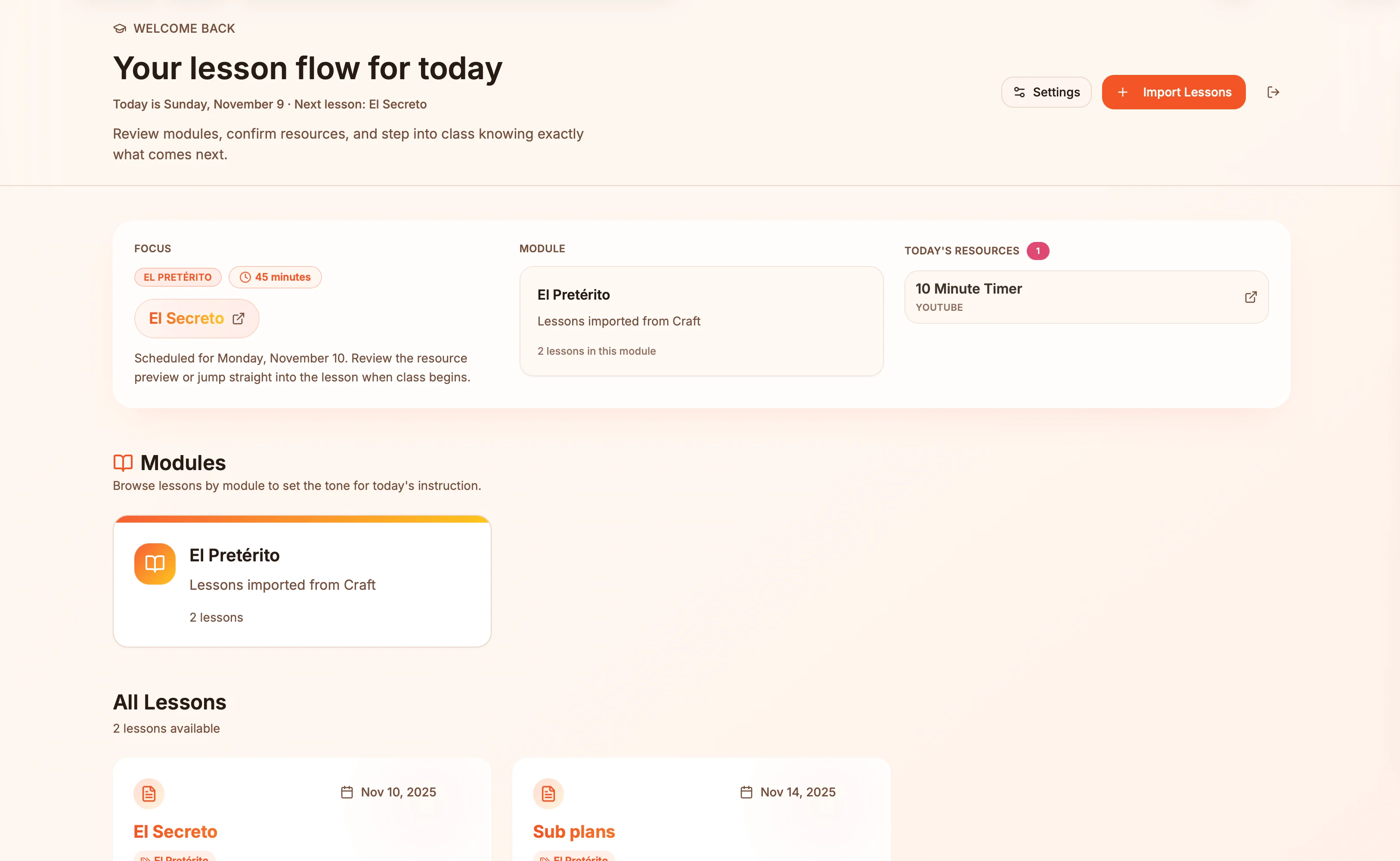
Lesson plans in Craft become live presentation slides — always in sync, zero copy-paste.
Learn more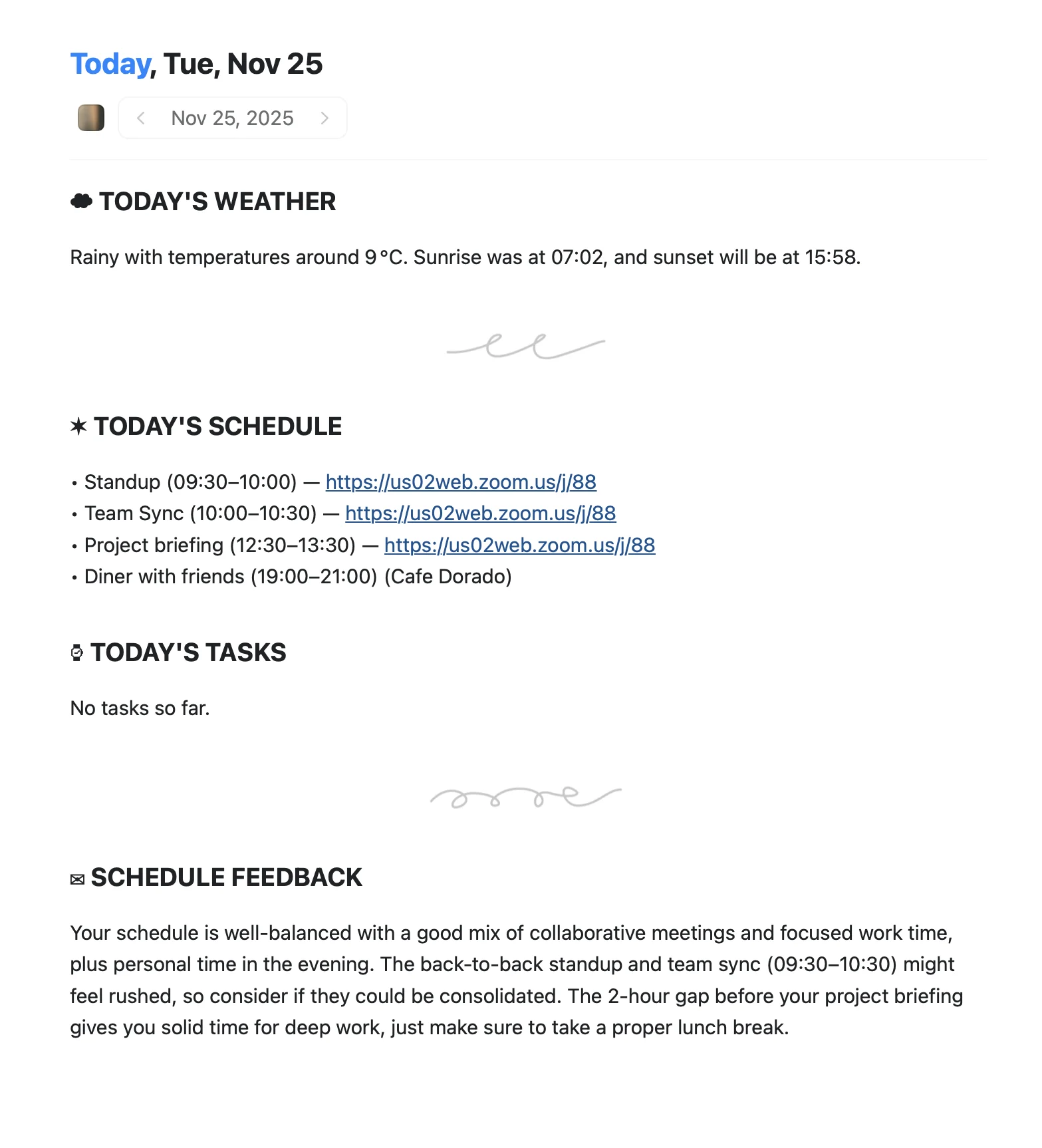
An Apple Shortcut that writes your morning agenda directly into Craft Daily Notes.
Learn more